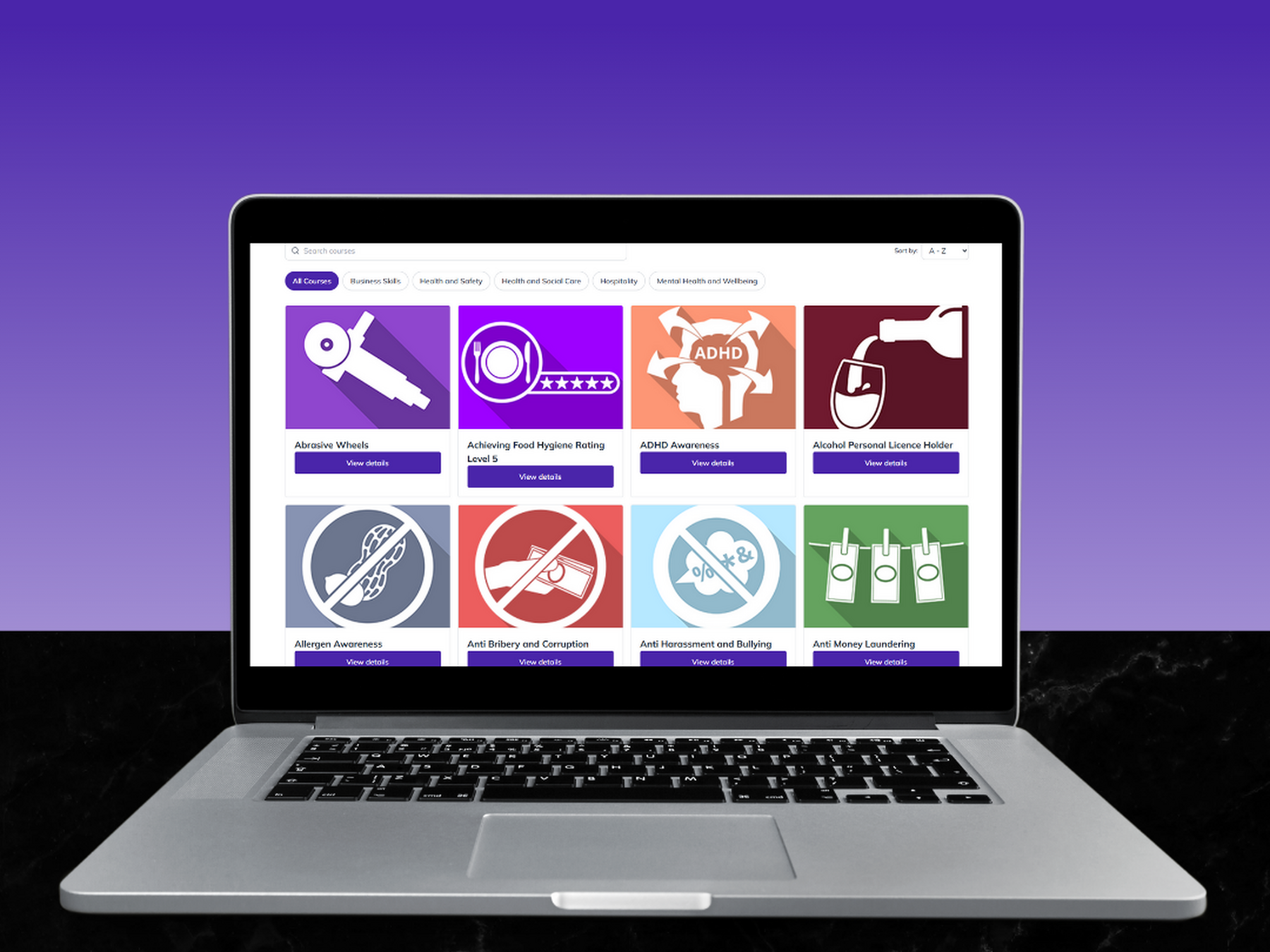
Our online workplace training courses provide a flexible, efficient and cost-effective solution for businesses looking to develop their workforce without the constraints of traditional face-to-face training. While in-person training can be highly effective, it is often limited by availability, time away from the workplace and higher costs. Online staff training removes these barriers, allowing employees to complete essential learning at a time and pace that suits them.
Designed to support both employee development and compliance requirements, our workplace e-learning courses enable organisations to deliver consistent, high-quality training across teams, locations and roles. Courses are accessible anytime, anywhere, helping to reduce downtime and improve engagement while maintaining productivity.
Our online learning for the workplace is ideal for businesses of all sizes, offering a scalable training solution that supports ongoing professional development, mandatory training and refresher courses - all while keeping costs and disruption to a minimum.
Our online training courses for employees are video-based and interactive, allowing learners to complete training in one session or at their own pace. Modules can be paused, repeated or reviewed at any time, making them ideal for ongoing employee training and development.
We offer a wide range of workplace e-learning courses, including:
All courses can be accessed on desktop, laptop, tablet and mobile devices, providing fully flexible online learning for the workplace. On successful completion, learners receive a certificate of achievement, including approving body details where applicable.
A free trial is available, providing access to the first module of each course so you can assess suitability before purchase.
Courses can be managed individually via a learner account, or through a business training account, allowing employers to manage multiple employees and courses in one central dashboard.
Further course information is available by selecting Download PDF on each course page.
Environmental Awareness
View detailsEpilepsy Awareness
View detailsEquality, Diversity and Discrimination
View detailsFacebook for Business
View detailsFire Doors Awareness
View detailsFire Extinguishers Awareness
View detailsFire Marshal / Warden
View detailsFront Line Manager Skills
View detailsHand Arm Vibration Syndrome (HAVS) Awareness
View detailsHandling Information in a Care Setting
View detailsHealth and Safety in a Care Setting
View detailsHot Works Awareness
View detailsSystem Requirements • Operating System: Windows 10 • Video: Up to date video drivers • Memory: 1Gb+ RAM • Download Speed: Broadband (3Mb+) • Browser: Up to date (Internet Explorer is not supported):
Browser Version - Most modern browsers will have the necessary plugins already built in to run the course content. If you are not able to see the content please make sure your web browser is up to date. Note: We recommend the Google Chrome browser which can be downloaded for free here: https://www.google.com/chrome/... Internet speed test - The video content has been optimised to run at low speeds but it still needs a stable connection to run smoothly. The minimum download speed we recommend is around 3 mbps. The High quality videos are intended for use on higher speed connections and should work best at speeds of 5mbps or higher. You can find out what your average speed is by using this tool: http://www.speedtest.net There are other factors that can affect the performance of the video content. These can range from low spec machines, which is why we have our minimum system requirements published below, to intermittent connection issues between your location and your ISP. The speed test tool is intended to give you an idea of whether a low connection speed could be the cause of your problems but does not give the full picture.
If the account was registered using the free trial form or while purchasing courses, the password was created during registration. If the account was created by an administrator, a welcome email was sent with the account username and a link to create the password.
To log in to your account, use the username and password in the candidate login form.
Please note:
• The username is generated by the eLearning system using your first and last name. It is not an email address.
• If you forget your password it can be reset using the link below the login form
Please ensure you are logging in under the ‘Candidate Login’ section and that you are copying and pasting your username directly from the welcome email. If you would like to reset your password, please click the ‘forgot your password’ link below the login form.
The courses are modular and each module has a series of person-led videos; usually with questions at the end. These questions are based on the content of the video so may not reflect any prior knowledge you may have on the subject matter or your specific business policies and procedures.
Therefore it is important to watch the video content and not skip to the questions if you think you have the knowledge already.
There is a required pass percentage for each module that must be achieved to complete the course and access a certificate. Once a course is successfully completed, a ‘Get Your Certificate’ button will become available. Use this to download your certificate in PDF format. Certificates are saved to your account and can be re-downloaded at any point from your profile page.
You get 3 chances to achieve a pass on each module. If you fail a module more than 3 times you will have to contact The HR Branch as your online training provider or business admin to arrange a module reset (unlock).
A maximum of 3 module resets per course are allowed. If after 3 module resets another module is failed the course will be permanently locked (failed). If you fail a course you will have to purchase another course licence and restart.
If you are experiencing issues with the videos such as hearing sound but getting no picture or getting a green effect on the screen then this can usually be resolved by disabling hardware acceleration in your web browser, update your graphics driver or using a different web browser.
Disable Hardware Acceleration - to disable hardware acceleration follow the instructions below for Google Chrome: 1. Go to More (click the three vertical dots at the top right of the browser) 2. Select Settings. 3. At the bottom of the page, click or tap Advanced. 4. Under 'System', enable the toggle next to 'Use hardware acceleration when available'.
If you're using a browser other than Google Chrome, you can learn how to disable hardware acceleration in that browser's help content.
Update Your Graphics Driver - updating your computer’s graphics driver may correct the issue. For PC users: visit the website of your computer manufacturer to download the latest driver. For Mac users: 1. Click on the Apple logo. 2. In the Apple menu, click Software Update. 3. Install the Mac OS update if available – it will include the graphics driver update.
It is likely that this is a problem with your network speed. The courses require a 3Mb or higher download speed to run smoothly. If multiple users are accessing courses on a single connection it can cause slowdown. If you are having buffering issues you can turn off the ‘High Quality Video’ setting at the bottom right of the video player on the module selection page to help improve performance. Some workplaces run network security to block video content so you may need to speak to your IT department to access the videos.
The content has been tested and is known to work on a variety of iOS and Android devices but it is possible that the content may not work on some mobile devices. For the best experience we recommend you complete the course using a desktop or laptop computer running Windows 7+.
If you are not seeing anything except for a black square where the video should be it is possible that you have JavaScript disabled in your web browser. If it is turned off, you can find out how to enable it on this web page by following the link that relates to your web browser: http://www.enable-javascript.c...
Clear the Web Browsers Cache - If you have a problem with a specific video but others seem to be working fine it may be that the original download of the file you are trying to view was interrupted and the incomplete file has been cached by your web browser. This issue is usually solved by clearing your web browsers cache. To find out how to clear the cache in your particular browser. Please visit the web page and follow the link that relates to your web browser. https://kb.iu.edu/d/ahic
Please ensure your speakers or headphones are plugged in and turned on. If this is the case, please ensure that the computers audio is turned up to reasonable level. If you don’t have access to speakers or work in a busy office we would recommend using headphones.
When logging in to your account for the first time you will be asked to confirm your name. If your name doesn’t appear correctly, you will be given the opportunity to change it. This name is displayed on course certificate(s) so please be aware that once you have confirmed your name, it will NOT be possible to change it.
If you click on the 'Purchase Here' tab, it will show the list of available courses under each topic area. For each course it will display an overview of the course content, the number of CPD units, typical course duration and cost. Clicking on the 'Download PDF' in the centre will provide extra course content information, a list of the modules, pass marks and the system requirements.
Yes the final assessment is timed, but there should be plenty of time to complete the questions.
Many of the courses are also available with closed captions in a variety of languages.
The courses have a closed caption function which can be activated to provide subtitles at the bottom of the screen.